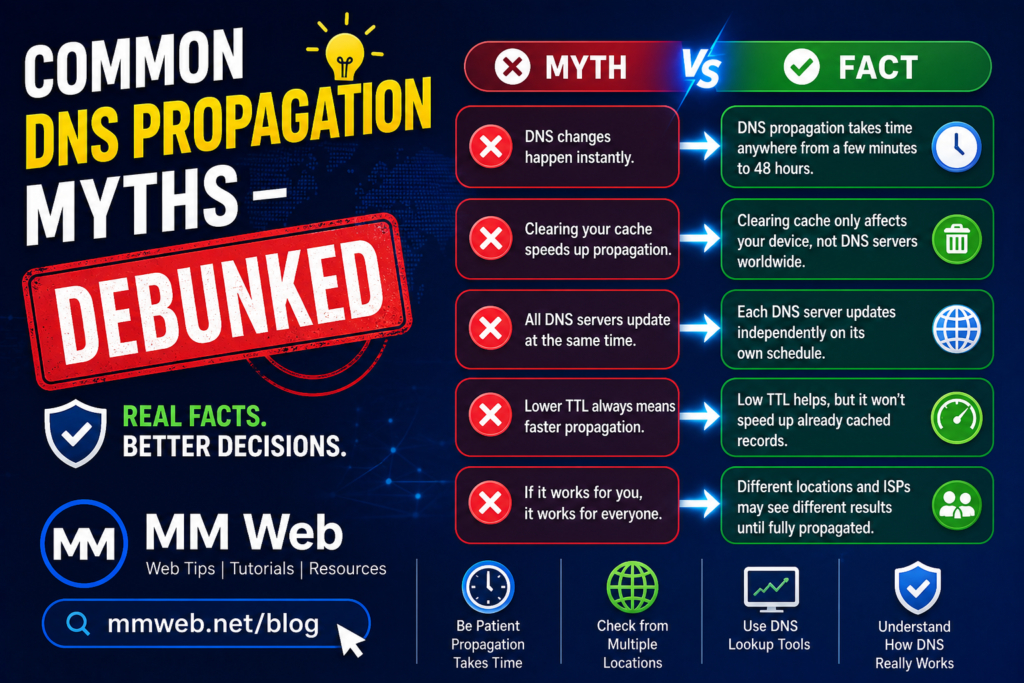
Your website is down. Or maybe it’s loading for you but not for your customers. Perhaps email is flowing inconsistently—some messages arrive, others bounce. Your boss is asking questions. Your customers are complaining.
Ninety percent of “my site is down” complaints are actually DNS issues.
And here’s the painful truth: Most website owners don’t know how to diagnose DNS problems. They wait. They call support. They pay for expensive “emergency troubleshooting” that they could have done themselves in five minutes.
DNS troubleshooting is not magic. It’s a systematic process of asking the right questions using the right tools. In this guide, I’ll teach you exactly how to diagnose any DNS issue using three categories of tools:
dig— The gold standard. Powerful, precise, indispensable.nslookup— The Windows-friendly alternative.- Online tools — For when you’re not at your terminal.
By the end, you’ll never blindly “wait for propagation” again.
Part 1: Before You Start — The Troubleshooting Mindset
DNS issues fall into three categories. Knowing which one you’re dealing with cuts troubleshooting time by 80%.
| Category | Symptoms | Common Causes |
|---|---|---|
| Configuration errors | No one can reach your site; changes never take effect | Typos in DNS records, wrong IP address, missing trailing dots |
| Propagation delays | Some users see new site, some see old; changes eventually resolve | High TTL values, recent changes, stubborn ISP caches |
| Resolver issues | You can’t reach the site but global tools show it’s live | Local DNS cache, ISP DNS problems, router issues |
The golden rule of DNS troubleshooting: Always verify at the authoritative source first. Bypass all caches. Then work your way outward.
Now let’s get to the tools.
Part 2: dig — The Definitive DNS Troubleshooting Tool
dig (Domain Information Groper) is the most powerful DNS diagnostic tool ever created. It’s available on:
- macOS: Built-in (open Terminal)
- Linux: Built-in (open Terminal)
- Windows: Available via WSL, Git Bash, or by installing BIND tools
The Most Important dig Command You’ll Ever Run
bash
dig yourdomain.com
This returns the A record (IPv4 address) for your domain using your system’s default DNS resolver.
But that’s just the beginning. The real power comes from the options.
Essential dig Commands by Use Case
1. Query a Specific Record Type
bash
# A record (IPv4 address)
dig yourdomain.com A

# AAAA record (IPv6 address)
dig yourdomain.com AAAA

# MX records (email servers)
dig yourdomain.com MX

# TXT records (SPF, DKIM, verification)
dig yourdomain.com TXT

# CNAME record (aliases)
dig www.yourdomain.com CNAME

# NS records (nameservers)
dig yourdomain.com NS

# ANY record (all types — use sparingly)
dig yourdomain.com ANY
2. Bypass Local Cache (Query a Specific Nameserver)
This is the single most important troubleshooting technique. It bypasses all caches and asks the authoritative source directly.
bash
# Query Google's public DNS (bypasses your ISP)
dig yourdomain.com @8.8.8.8

# Query Cloudflare's public DNS
dig yourdomain.com @1.1.1.1

# Query your domain's authoritative nameserver
dig yourdomain.com @ns1.yourregistrar.com
Why this matters: If dig @8.8.8.8 shows the correct record but dig (without @) shows an old record, the problem is local cache—not DNS configuration.
3. Trace the Resolution Path (+trace)
This shows every step of the DNS resolution process, from root servers to TLD servers to authoritative nameservers.
bash
dig yourdomain.com +trace
When to use this: When you suspect delegation issues (e.g., nameserver changes aren’t propagating). The output will show exactly where the chain breaks.
4. Control Output Verbosity
bash
# Short answer only (no headers, no stats)
dig yourdomain.com +short

# Show only the ANSWER section
dig yourdomain.com +noall +answer

# Show EVERYTHING (debugging only)
dig yourdomain.com +trace +stats
5. Reverse DNS Lookup (PTR Record)
Find the domain name associated with an IP address.
bash
dig -x 8.8.8.8
Real-World dig Troubleshooting Scenarios
Scenario 1: Website Not Loading
bash
# Step 1: Check your local resolver
dig yourdomain.com

# Step 2: Check a public resolver
dig yourdomain.com @8.8.8.8

# Step 3: If they differ, flush your local DNS cache
# (macOS) sudo dscacheutil -flushcache; sudo killall -HUP mDNSResponder
# (Windows) ipconfig /flushdns
# (Linux) sudo systemctl restart nscd

# Step 4: Check again with local resolver
dig yourdomain.com
Interpretation:
- If step 2 shows correct, step 4 shows correct after flush → Local cache issue (resolved)
- If step 2 shows wrong → DNS configuration error at your registrar/DNS host
- If step 2 times out → Nameserver issue or domain expired
Scenario 2: Email Delivery Problems
bash
# Check MX records from authoritative source
dig yourdomain.com MX @8.8.8.8 +short

# Expected output (Google Workspace example):
# 1 ASPMX.L.GOOGLE.COM.
# 5 ALT1.ASPMX.L.GOOGLE.COM.
# 5 ALT2.ASPMX.L.GOOGLE.COM.
# 10 ALT3.ASPMX.L.GOOGLE.COM.
# 10 ALT4.ASPMX.L.GOOGLE.COM.

# Check SPF record (TXT)
dig yourdomain.com TXT @8.8.8.8 | grep "v=spf1"

# Check DKIM (example for Google)
dig google._domainkey.yourdomain.com TXT @8.8.8.8
Red flags:
- No MX records → Email will fail for everyone
- Multiple MX records with same priority → Confusion for sending servers
- Missing SPF → Emails likely marked as spam
- Syntax errors in TXT records (missing quotes, spaces)
Scenario 3: Recent DNS Change Not Showing
bash
# Check TTL of the record (how long it's cached)
dig yourdomain.com +ttlid

# Output shows TTL in seconds:
# yourdomain.com. 3600 IN A 192.0.2.1
#                  ^^^^ TTL = 1 hour

# Check multiple global resolvers
dig yourdomain.com @8.8.8.8 +short
dig yourdomain.com @1.1.1.1 +short
dig yourdomain.com @208.67.222.222 +short  # OpenDNS
Interpretation:
- If all resolvers show the new record → Propagation complete
- If some show old, some show new → Normal propagation (wait TTL period)
- If none show new after 2× TTL period → Configuration error (check authoritative nameserver directly)
Part 3: nslookup — The Cross-Platform Alternative
nslookup (Name Server Lookup) is available on Windows, macOS, and Linux. It’s less powerful than dig but more accessible, especially on Windows.
Basic nslookup Commands
cmd
# Simple lookup (uses default DNS server)
nslookup yourdomain.com

# Query specific record type
nslookup -type=MX yourdomain.com
nslookup -type=TXT yourdomain.com
nslookup -type=NS yourdomain.com
nslookup -type=CNAME www.yourdomain.com

# Query a specific DNS server
nslookup yourdomain.com 8.8.8.8
nslookup -type=MX yourdomain.com 1.1.1.1
Interactive Mode (Advanced)
Type nslookup (no arguments) to enter interactive mode:
cmd
> server 8.8.8.8          (change DNS server to Google)
> set type=MX             (set record type)
> yourdomain.com          (query)
> set type=TXT            (change record type)
> yourdomain.com          (query again)
> exit                    (leave interactive mode)
Windows-Specific Cache Management
cmd
# View DNS cache (Windows)
ipconfig /displaydns

# Clear DNS cache (Windows)
ipconfig /flushdns

# View network adapter DNS settings
ipconfig /all | findstr "DNS Servers"
Real-World nslookup Scenario: Domain Propagation Check (Windows)
cmd
# Check local DNS first
nslookup yourdomain.com

# Check Google DNS
nslookup yourdomain.com 8.8.8.8

# Check Cloudflare DNS
nslookup yourdomain.com 1.1.1.1

# If local differs from Google/Cloudflare, flush cache
ipconfig /flushdns

# Check again
nslookup yourdomain.com
Part 4: Online DNS Tools (When You Can’t Use Command Line)
Sometimes you’re on a restricted machine, a mobile device, or a client’s computer without terminal access. Online tools save the day.
For Propagation Checking
| Tool | Best For | URL |
|---|---|---|
| WhatsMyDNS.net | Global A/CNAME/MX/TXT checks (20+ locations) | whatsmydns.net |
| DNS Checker | Visual map + percentage completion | dnschecker.org |
| G Suite Toolbox Dig | Google’s official dig interface | toolbox.googleapps.com/apps/dig |
How to use: Enter your domain, select record type, click Search. Green checks = propagated, red X = not yet.
For Deep DNS Analysis
| Tool | Best For | URL |
|---|---|---|
| MXToolbox | Email-specific diagnostics (MX, SPF, DKIM, DMARC, blacklists) | mxtoolbox.com |
| DNSSEC Analyzer | DNSSEC validation chain verification | dnssec.verisignlabs.com |
| SecurityTrails | Historical DNS records (find old IPs, subdomains) | securitytrails.com |
| DNS Spy | Continuous monitoring (alerts when DNS changes) | dnsspy.io |
For Simple One-Off Checks
| Tool | Best For | URL |
|---|---|---|
| Google Dig | Simple, clean dig interface | google.com/search?q=dig+yourdomain.com |
| Ping | Quick A record + latency check | ping.eu (or ping yourdomain.com in terminal) |
Real-World Online Tool Scenario: Email Blacklist Check
Your emails are going to spam. Here’s the MXToolbox workflow:
- Go to mxtoolbox.com
- Enter your domain → Click “MX Lookup”
- Verify MX records are correct
- Click “SPF Lookup” → Verify SPF syntax
- Click “DKIM Lookup” → Enter selector (e.g.,
googlefor Workspace) - Click “DMARC Lookup” → Verify policy (
p=none,p=quarantine, orp=reject) - Click “Blacklist Check” → Enter your mail server IP
One-stop diagnostic: MXToolbox’s “SuperTool” (enter your domain, run all checks at once).
Part 5: Systematic Troubleshooting Flowchart
Follow this decision tree every time you suspect a DNS issue.
Step 1: Is the Problem You or Everyone?
bash
# Check from multiple sources
dig yourdomain.com @8.8.8.8 +short

# If this returns a valid IP, the problem is likely local
Test with a friend or mobile data: Can they reach your site? If yes → Local issue (your computer/network). If no → Global issue (DNS configuration or hosting).
Step 2: Verify Authoritative Nameserver Directly
bash
# Find your domain's nameservers
dig yourdomain.com NS +short

# Example output:
# ns1.cloudflare.com.
# ns2.cloudflare.com.

# Query the authoritative server directly
dig yourdomain.com A @ns1.cloudflare.com
If this returns the correct IP: DNS is configured correctly. Problem is caching or propagation.
If this returns wrong IP or NXDOMAIN: Configuration error at your DNS host.
Step 3: Check TTL and Propagation Status
bash
# Check current TTL
dig yourdomain.com +ttlid

# Check global propagation (use online tool or multiple resolvers)
dig yourdomain.com @8.8.8.8 +short
dig yourdomain.com @1.1.1.1 +short
dig yourdomain.com @208.67.222.222 +short
Interpretation:
- All resolvers show same (correct) record → Propagation complete
- Mixed results → Normal propagation (check again after TTL period)
- All resolvers show old record after 2× TTL → Configuration never updated
Step 4: Local Cache Check
bash
# macOS/Linux
sudo dscacheutil -flushcache
sudo killall -HUP mDNSResponder
dig yourdomain.com

# Windows
ipconfig /flushdns
nslookup yourdomain.com
If local resolver now shows correct record → Issue resolved (local cache was stale).
Step 5: Router and Browser Cache
Still having issues? Bypass your router’s DNS cache:
- Reboot your router (clears router-level cache)
- Or change your device’s DNS to
8.8.8.8(temporarily)
Also clear browser cache:
- Chrome:
chrome://net-internals/#dns→ Clear host cache - Firefox: Settings → Privacy & Security → Clear DNS cache
- Safari: Clear history and website data
Step 6: Escalate
If after all these steps authoritative NS shows correct but global resolvers still show wrong after 24 hours:
- Contact your DNS host (Cloudflare, AWS Route 53, your registrar)
- Provide your
dig +traceoutput - Ask them to check zone file propagation at the TLD level
Part 6: Common DNS Errors and How to Identify Them
Error 1: NXDOMAIN (Non-Existent Domain)
Symptoms: dig returns status: NXDOMAIN
Meaning: The domain name does not exist in DNS (typo, expired registration, or missing records).
Diagnosis:
bash
dig nonexistentdomain.com
# ;; ->>HEADER<<- opcode: QUERY, status: NXDOMAIN, id: 12345
Fix: Check domain registration status, verify nameserver delegation.
Error 2: SERVFAIL
Symptoms: dig returns status: SERVFAIL
Meaning: The DNS server encountered an internal error (often DNSSEC validation failure or broken chain).
Diagnosis:
bash
dig yourdomain.com +dnssec # Check DNSSEC
Fix: Contact your DNS host or disable DNSSEC temporarily to test.
Error 3: REFUSED
Symptoms: dig returns status: REFUSED
Meaning: The DNS server refused to answer (often rate limiting or ACL restrictions).
Diagnosis: Query a different resolver:
bash
dig yourdomain.com @8.8.8.8 # Compare with your ISP's resolver
Fix: Switch to public DNS (8.8.8.8) or contact your ISP.
Error 4: No Answer Section (Empty Response)
Symptoms: dig returns ANSWER: 0 but no error
Meaning: The record type doesn’t exist for this domain (e.g., querying MX for a domain that only has A records).
Diagnosis: Check if this is expected:
bash
dig yourdomain.com A  # Should return answer
dig yourdomain.com MX # Might return empty if no mail server configured
Fix: Add the missing record type if needed.
Error 5: Truncated Response (TCP Fallback)
Symptoms: dig output includes truncated or tc flag
Meaning: Response exceeded 512 bytes (UDP limit), requiring TCP fallback.
Diagnosis: Retry with TCP:
bash
dig yourdomain.com +tcp
Fix: Usually not an issue (most resolvers handle this automatically). If persistent, reduce DNS record sizes (simplify TXT records).
Part 7: Quick Reference Card — Most Useful Commands
| Task | dig Command | nslookup Command |
|---|---|---|
| Basic A record | dig domain.com | nslookup domain.com |
| MX records | dig domain.com MX | nslookup -type=MX domain.com |
| Query specific DNS server | dig domain.com @8.8.8.8 | nslookup domain.com 8.8.8.8 |
| Short answer only | dig domain.com +short | (not easily available) |
| Trace full path | dig domain.com +trace | (not available) |
| Reverse lookup (IP to domain) | dig -x 8.8.8.8 | nslookup 8.8.8.8 |
| Show TTL | dig domain.com +ttlid | (not available) |
| Check nameservers | dig domain.com NS | nslookup -type=NS domain.com |
| Check CNAME | dig www.domain.com CNAME | nslookup -type=CNAME www.domain.com |
| Check TXT (SPF/DKIM) | dig domain.com TXT | nslookup -type=TXT domain.com |
Part 8: Pro Tips from a Senior Engineer
Tip 1: Always Use +short for Scripts
bash
# Human-readable (verbose)
dig yourdomain.com

# Machine-readable (just the IP)
dig yourdomain.com +short
# Output: 192.0.2.1
Tip 2: Query All Nameservers for Consistency
bash
# Get nameservers
NSERVERS=$(dig yourdomain.com NS +short)

# Query each one for A record
for ns in $NSERVERS; do
    echo "=== $ns ==="
    dig yourdomain.com A @$ns +short
done
Tip 3: Test Before Changing DNS (Lower TTL First)
bash
# Check current TTL
dig yourdomain.com +ttlid

# If TTL > 300, lower it 48 hours before your change
# (Do this via your DNS provider's interface)
Tip 4: Automate Regular DNS Health Checks
bash
#!/bin/bash
# Add to crontab: */15 * * * * /usr/local/bin/dns-health-check.sh

DOMAIN="yourdomain.com"
EXPECTED_IP="192.0.2.1"

CURRENT_IP=$(dig $DOMAIN A @8.8.8.8 +short)

if [ "$CURRENT_IP" != "$EXPECTED_IP" ]; then
    echo "ALERT: DNS mismatch! Expected $EXPECTED_IP, got $CURRENT_IP" | mail -s "DNS Alert" admin@yourdomain.com
fi
Tip 5: Use +timeout and +tries for Unreliable Networks
bash
dig yourdomain.com +timeout=5 +tries=2
# Wait 5 seconds per try, retry twice
Final Checklist — Diagnose Any DNS Issue in 5 Minutes
- Check authoritative source:
dig yourdomain.com @ns1.provider.com - Compare with public resolvers:
dig yourdomain.com @8.8.8.8vs@1.1.1.1 - Check TTL: Is it unexpectedly high?
dig yourdomain.com +ttlid - Flush local cache:
ipconfig /flushdns(Windows) ordscacheutil -flushcache(macOS) - Test from another network: Mobile data vs. WiFi
- Clear browser cache and test in incognito mode
- Use online tool: WhatsMyDNS.net for global perspective
- Check email separately: MXToolbox for MX/SPF/DKIM/DMARC
- If DNSSEC enabled:
dig yourdomain.com +dnssecto verify chain
The Bottom Line
DNS issues are frustrating because they’re invisible. You can’t “see” a misconfigured record or a stale cache. But with dig, nslookup, and the right online tools, you can make the invisible visible.
Remember the hierarchy:
- Authoritative source (your DNS host) → Truth
- Public resolvers (8.8.8.8, 1.1.1.1) → Global reality
- Your local resolver → Your reality
- Online tools → Everyone else’s reality
When these four align, DNS works. When they don’t, you now know exactly where to look.
Stop waiting. Start troubleshooting.
What’s the strangest DNS issue you’ve ever debugged? Share your war story in the comments.